We open the browser to download the CAP RLA software on the PC, and three sponsored links appear before the official site. The first redirects to an executable hosted on an unknown domain, the second asks to disable the antivirus before installation.
This kind of trap concerns both students in logistics training and teachers preparing their training sessions. Knowing where to click and what to check before starting a download makes all the difference between a functional workstation and a compromised machine.
Fake CAP RLA download sites: concrete traps to spot
Searches for training software like CAP RLA generate results cluttered by third-party download sites. These platforms offer modified installers, sometimes accompanied by unwanted toolbars or potentially malicious programs.
The first reflex before any download is to check the domain in the address bar. For CAP RLA, the official portal is hosted on cap.lignesdazur.fr. Any variant (added hyphens, extensions like .net or .info, fanciful subdomains) should raise a red flag.
You can also rely on the protections built into Windows. SmartScreen, enabled by default on Windows 10 and 11, analyzes the reputation of a downloaded file and blocks unsigned executables. If a SmartScreen warning appears when launching an installer that is supposed to be official, it is a strong signal: the file likely does not come from the legitimate publisher.
When you need to download cap rla pc safely, it is better to go directly through the link provided by the institution or training organization rather than through a general search engine.

Installing CAP RLA on Windows PC: compatibility and system requirements
Many incidents reported by users stem from a mismatch between the version of Windows and the software requirements. Business applications related to CAP training (logistics, inventory management) are designed to run on Windows 10 64-bit at a minimum. A system running Windows 7 or a 32-bit version of Windows 10 is likely to run the software unstable, or even refuse installation.
What to check before launching the installer
- The exact version of Windows: right-click on “This PC”, then “Properties”. Look for the mention “64-bit” and the version number (at least Windows 10 version 21H2 to avoid known incompatibilities).
- Administrator rights on the workstation: on a laptop loaned by the Region, rights are often restricted. Without administrator access, the installer cannot write to Program Files. You will then need to go through the institution’s IT service.
- Available disk space: a business software with its exercise databases can take up several hundred megabytes. A nearly full system disk causes crashes during installation, not after.
Feedback varies on this point, but several logistics teachers report that regional laptops pose more problems than fixed PCs in dedicated rooms, particularly due to rights restrictions and overheating during prolonged sessions.
Securing your workstation after downloading CAP RLA
Installing the right file from the right source is not enough. The security of the workstation also depends on what happens after installation.
Check the digital signature of the executable
Before double-clicking, right-click on the downloaded .exe file, then open the “Digital Signatures” tab in the properties. A legitimate publisher signs their executables. The absence of a signature is a sufficient reason not to launch the file.
Keep Windows Defender active during and after installation
Some tutorials found online advise disabling the antivirus “to avoid false positives.” This is exactly the type of instruction disseminated by distributors of pirated or modified software. Windows Defender and SmartScreen should remain active at all times. If the official software triggers a false positive, the solution is to create a targeted exception in the security settings, not a global deactivation.
CAP RLA on the institution’s network: configuration and remote access
In most vocational high schools, CAP RLA is not installed on each workstation individually. The software runs on an internal server, and students access it via a network session. This architecture completely changes the question of downloading.
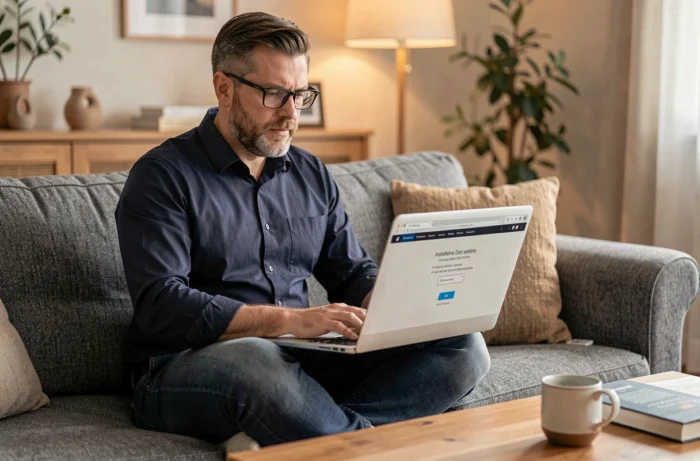
If the institution uses this deployment mode, no local download is necessary. You connect to the portal cap.lignesdazur.fr with the credentials provided by the administration. The browser is sufficient, as long as you use a recent version of Chrome, Edge, or Firefox.
For students who want to practice at home, the question arises differently. Remote access to the institution’s server is not always open from an external network. In this case, two options exist:
- Request VPN access from the high school’s IT service, which allows you to connect to the server as if you were on-site.
- Check if a standalone version of the software is available on the institution’s ENT (Digital Work Environment), with a temporary activation key.
- Use digital course materials as a supplement, to review the theoretical part without relying on the business software.
The CAP RLA covers skills in reception, logistics, and customer service. The digital aspect of the training is gaining importance every year, making the reliability of the computer workstation even more critical. A well-configured workstation from the start, with an up-to-date system and verified access to the official portal, avoids most technical blockages encountered throughout the year.